

CONNECT HELPCENTER · DELIVERY DATE SETTINGS
Allow customers to select their preferred delivery date.
Delivery date settings allows the seller to define when the customer can request delivery: the date, available time range, and note. Enable this option when knowing when the customer wants to receive the package is important for organizing delivery.
If you do not use this feature, disable Manage delivery date and save the change. The additional form for the date, time, and note provided by this add-on will then not be displayed for that seller at checkout. Other delivery settings remain separate.
How to open the seller profile →Where are Delivery date settings located?
- 01
In administration, open Vendors → Vendors, then your company profile.
- 02
Open your company profile. On the Add-ons tab, find and expand the Delivery date settingssection if necessary.
- 03
Align the settings with the actual delivery capabilities, then save using the Savebutton. If you cannot see the section or it is disabled for editing, ask Connect support to check your permissions and activation.
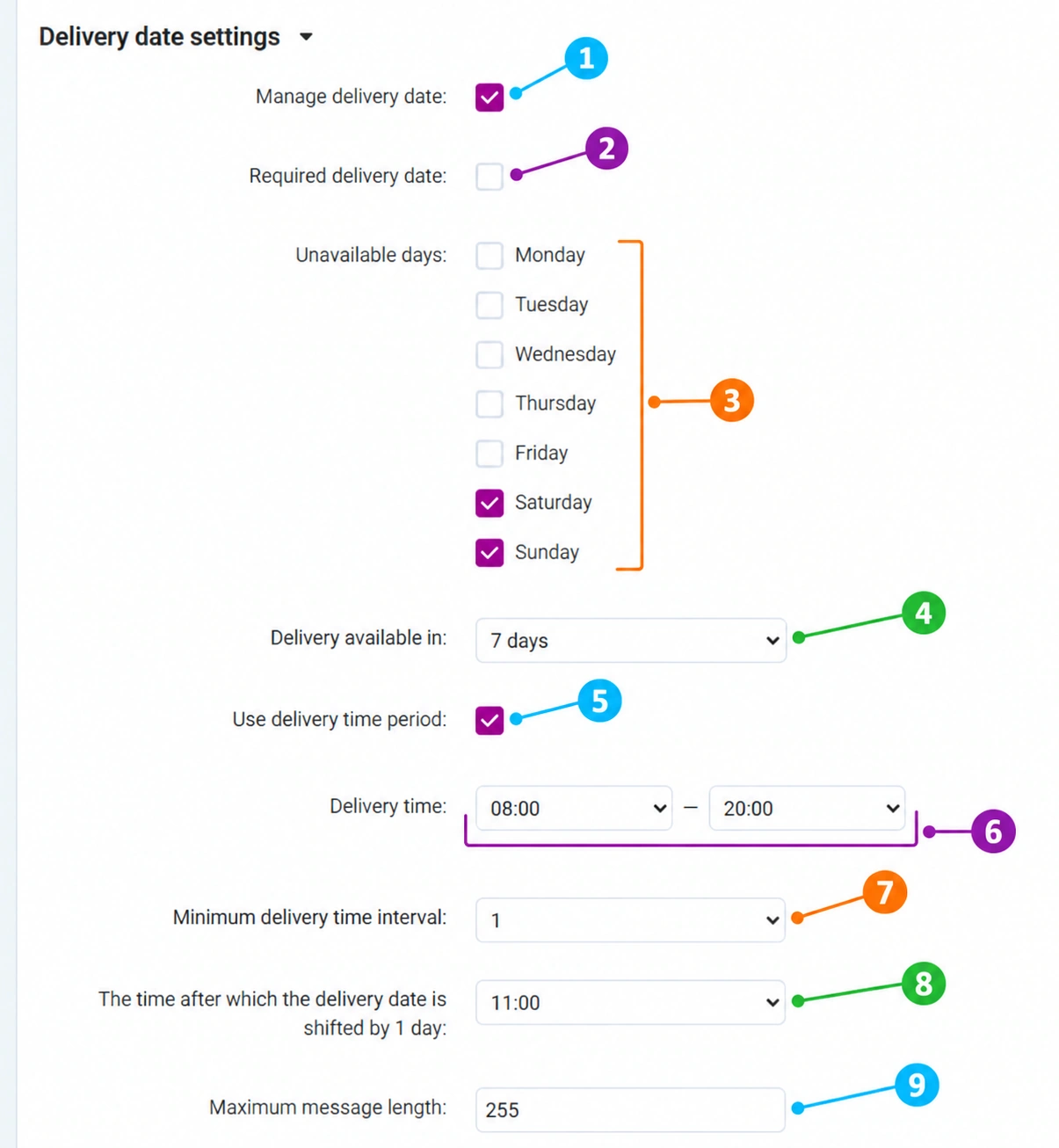
Numbers 1–9 in the screenshot correspond to the numbered field explanations below.
Enabling and required date
1 · Manage delivery date
Enables use of this feature for the seller. When it is disabled and the change is saved, its form is not displayed for that seller at checkout. To display it when the feature is enabled, an appropriate delivery method that allows date selection must also be selected.
2 · Required delivery date
Determines whether the customer must select a date when the form is displayed. If enabled, the customer must enter a date to complete the corresponding checkout step. If disabled, the date is optional. Disabling the requirement is not the same as completely disabling the feature.
Unavailable days and earliest date
3 · Unavailable days
Select the days of the week on which you do not offer delivery. A selected day means that the day is unavailable. If you select Saturday and Sunday, the customer cannot select Saturday and Sunday in this calendar. Do not select all days if you want to allow date selection; at least one day must remain available.
These are recurring days of the week. This does not automatically enter individual holidays or exceptional non-working dates. Coordinate such requirements with the Connect team and your logistics team in good time.
4 · Delivery available in
Sets the minimum number of days from the current date to the earliest date that the customer can select. For example, 7 days means that the starting date for the calculation is seven calendar days later, not that only the next seven days are available. The day offset and unavailable days may move this earliest date further.
Align the number of days with your preparation and delivery organization. This setting is not a number of working days, is not a period expressed in hours, and by itself does not change the deadlines or service of the external carrier.
Time range and minimum interval
5 · Use delivery time period
Enable this when, in addition to the date, you want to offer the customer a choice of the start and end of the requested time slot. If disabled, the time is not displayed, while date selection may remain available when the main feature is enabled.
6 · Delivery time
Defines the boundaries within which the customer selects a time range. For example, 08:00–20:00 limits the offered time slots to this range. Set boundaries that you can support operationally and check the display at checkout.
7 · Minimum delivery time interval
Sets the minimum permitted width of the selected time range, in hours. The value 1 means at least one hour between the start and end, for example 10:00–11:00. A value of 2 requires at least two hours. This is not the minimum number of hours required to prepare an order.
The interval must fit within the total available range. If it is longer than the entire delivery range, the time selection may be missing at checkout. After making changes, check that the start, end, and interval are mutually aligned.
Day offset after a specified time
8 · The time after which the delivery date is shifted by 1 day
This is the daily cutoff time for moving the earliest date forward by one more day. If you select 11:00, the offset is applied from 11:00 onward according to the system time. This does not mean that all dates already selected are automatically moved or that 11:00 is the final time of physical delivery.
Example without unavailable days: with Delivery available in = 1 day, on Monday before the cutoff time the earliest date is Tuesday, and from the cutoff time it is Wednesday. If the day calculated this way is unavailable, the next permitted date may be later. If you do not want this daily offset, select Do not use.
When checking, align expectations with the system time settings. If the cutoff time behaves differently than expected, send support the time of the check and a screenshot of the settings.
Customer note and example settings
9 · Maximum message length
Limits the length of the customer's message in this add-on's form. The value 255 allows up to 255 characters, not words. The customer's note should not replace a delivery arrangement that your logistics team can actually fulfill.
How should the image be read?
- Manage delivery date is enabled, and the date is not required.
- Saturday and Sunday are marked as unavailable.
- The earliest date is calculated seven calendar days ahead, with a possible additional daily offset.
- Time selection is enabled within 08:00–20:00, with a minimum range of one hour.
- From 11:00, the earliest date is moved forward by one additional day, while unavailable days are respected.
- The customer's message is limited to 255 characters.
The selected date and range represent the customer's request, which you must process in accordance with the agreed service. Activation alone does not reserve a time slot with an external carrier or confirm a guaranteed delivery at a specific hour.
Saving and checking at checkout
- 01
Review the activation, requirement, unavailable days, number of days, time range, interval, and cutoff time. Click Save and reopen the settings to confirm the saved values.
- 02
In the storefront, prepare a cart with a product from that seller. Enter the required details and select the appropriate delivery method. Check whether the form appears for that seller.
- 03
Check the earliest date, blocked days, permitted hours, and note. You do not need to place an actual order to review the fields. Agree in advance on the submission of a test order and any possible notifications.
- 04
If the form is missing, check activation for the correct seller, the selected delivery method, and the correctness of the delivery calculation. Support can check whether that method allows date selection. For a cart with multiple sellers, the settings are applied according to the respective seller and delivery method.
Frequently asked questions about selecting a delivery date
Will the fields be displayed if we do not use the feature?
No. Disable Manage delivery date and save the setting. This removes this add-on's form for that seller; other note forms or other add-ons have separate settings.
Why do I still not see the date after enabling it?
A supported delivery method must be selected, and delivery must be calculated successfully for that seller. Also check unavailable days and request a configuration review if necessary.
Is the date necessarily required?
No. The requirement is determined by Required delivery date. The main feature can remain enabled with an optional date.
Why did the time disappear even though it is enabled?
Check whether the minimum interval fits within the available range. Time and date have separate settings.
Are these settings the same as the delivery price or area?
No. The date and requested time slot supplement the purchase details. The price, method availability, and delivery area are configured separately.