

CONNECT HELPCENTER · STORE SETTINGS AND APPEARANCE
Logos, photos and banners
High-quality visual materials enable a clear presentation of your brand and products. Send us the source files, and the Connect team will align their use with the agreed design and page placement.
There is no single image size that works for every banner, product card and mobile view. Before the final export, we agree on the intended use, aspect ratio and required versions.

01 · PREPARATION AND REVIEW
Logo preparation
Original vector files together with approved web exports are preferred. Prepare versions for light and dark backgrounds, as well as the clear-space rules from your brand guidelines. A logo with a white background is not always suitable for a dark design.
Do not enlarge a small or blurry raster image and expect a sharp result. If you only have a low-quality source, let the Connect team know so we can agree on preparing a suitable file.
UPLOAD INSTRUCTIONS · VENDOR PROFILE
How to upload the vendor logo and the logo for invoices and emails
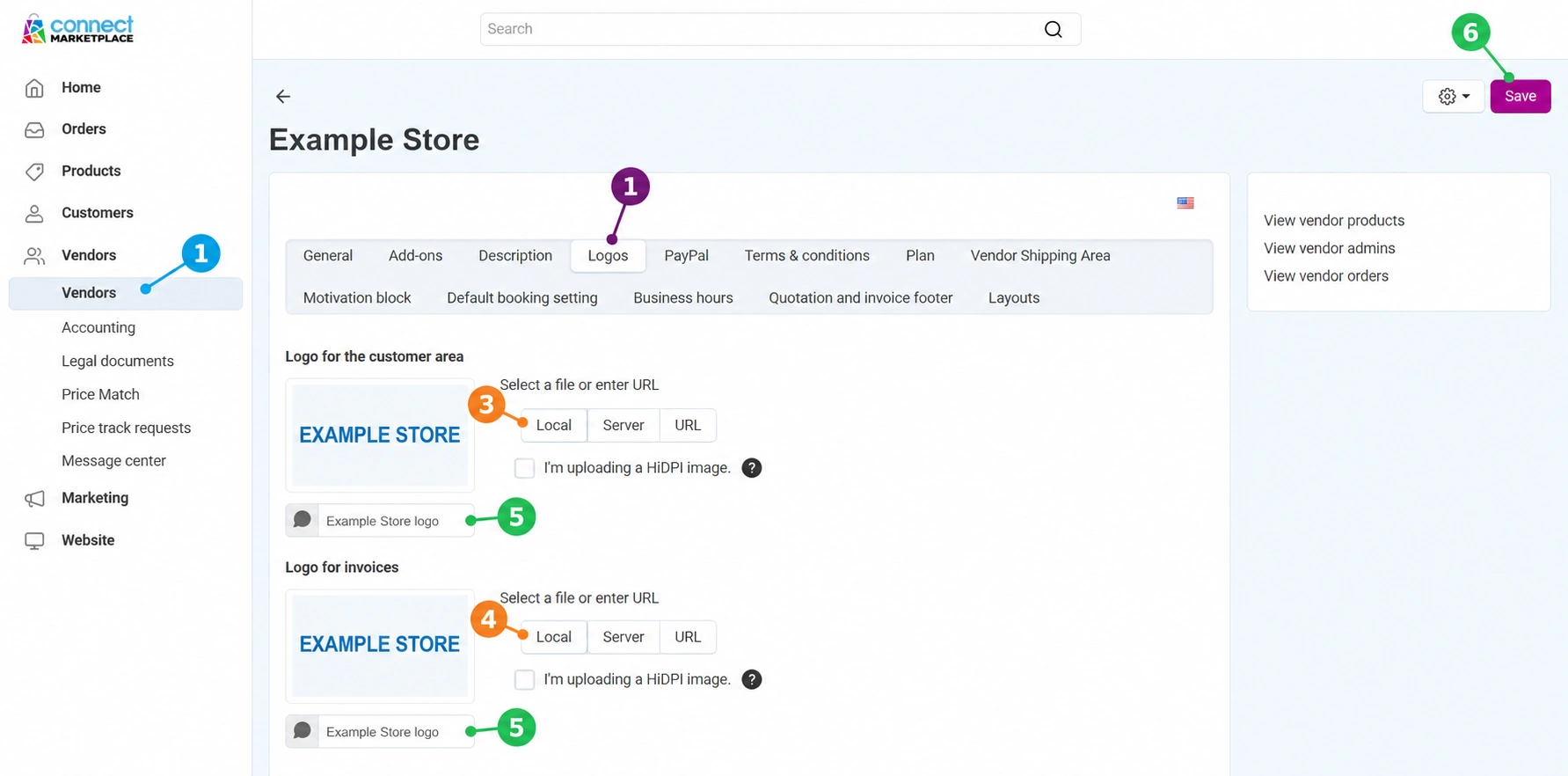
Both logos are edited on your company profile, but they have separate fields and files. Uploading an image for public display does not automatically replace the image intended for invoices and related messages.
- 01
Open your company profile
In the administration, open Vendors → Vendors, select your company if a list is displayed, and then select the tab Logos. Make sure you are editing the correct vendor.
- 02
Prepare the approved files
Use the final logo from the brand guidelines. Prepare a high-quality web export for uploading; PNG is practical when you need a transparent background. For invoices and emails, choose a version that is clearly visible on the document or message background. Keep the original vector files for preparation and future adjustments.
Logo for the customer area
This is the vendor logo for public or customer-facing display. Next to this field, select Local, find the file on your computer, and select it. Make sure the correct version is selected and that the file is attached specifically to this field.
If you are changing only this logo, leave the other image unchanged. Check its appearance against the agreed store design.
Logo for invoices
In this separate field, upload the logo intended for invoices and email templates that use the vendor logo. Click Local next to this field again and select the appropriate file.
You can use the same approved logo or a version adapted for documents and messages. It is important that the image remains legible at a smaller size and matches the template background.
- 05
Check the image description
Below the logo preview, there is a field Alternative text/title. Enter a short and meaningful name, such as your company or brand name. The description should match the actual logo, without a string of unrelated keywords.
- 06
Save the selected logos
Review both fields and click the top button Save. Selecting the file alone does not complete the save. If the system reports an unacceptable file, size, or required field, follow the message and check the entry again.
- 07
Reopen the tab and check the result
Make sure the expected images are displayed after reopening. Review the public logo on the appropriate vendor page, and the invoice logo in the view of the relevant document. For the email header, arrange a test of the relevant message before concluding that the implementation is correct.
The application of the logo in email depends on the template and message context. Some central marketplace messages use the storefront's visual identity. If the expected logo is missing, tell support the document or message type and the vendor so we can check the appropriate template; the test should not trigger an unnecessary real order.
If uploading or displaying fails
- Make sure you selected the image in the correct field and saved the change.
- Check whether the file supports the required transparency and whether the source is of sufficient quality.
- Check for any message about the permitted file size or format.
- If the buttons or tab are unavailable, ask Connect support to check your permissions.
02 · PREPARATION AND REVIEW
Photos and promotional banners
Send sharp photos in which the subject is clearly visible and for which you have the right to publish. Indicate which product, category or campaign they belong to and, if necessary, mark the main subject that must remain in the frame.
For banners, provide the campaign objective, destination link, final text and publication period. Do not place text and important details right next to the edge; different screens may require a different crop or a separate mobile version.
03 · PREPARATION AND REVIEW
Format, accessibility and loading speed
Web-optimized formats such as JPEG and WebP are used for photos, while transparency may require a suitable format such as PNG. We align the final format and processing with the intended use. Keep the source files separate from the optimized exports.
The file name should describe the content. Alt text should briefly convey the important information in the image without keyword stuffing. Keep important offer terms and instructions in the page text as well so they are not available only in the image.
Recommended workflow
Collect high-quality source materials.
Indicate the intended use, campaign and key subject.
Agree on dimensions and versions with the Connect team.
Review the final implementation on different screens.
Checklist for this topic
- Publication rights for photos and graphics have been confirmed.
- The logo has suitable source files and versions.
- The placement, aspect ratio and objective of each banner are known.
- The final text, link and campaign period have been provided.
- The crop has been checked on desktop and mobile.
The appearance of the administration area and the availability of fields depend on your account, theme and activated services. Design and technical changes are carried out by the Connect team according to the agreed scope. If the purpose of a setting is unclear, request a review before making changes.
Frequently asked questions
Can I use the same image everywhere?
The same source can often be used, but the final crop and dimensions depend on the placement. Check the readability and subject on mobile.
Do I need to send already compressed files?
Send a high-quality source and indicate what has already been processed. Repeated heavy compression can unnecessarily reduce quality.
CONTINUE WITH PREPARATION